With SecureDoc software, you can access the hard drive of an encrypted system. EnCase supports SecureDoc version 4.5 and above.
There are three ways to add SecureDoc disks to EnCase:
Preview the hard drive.
When you preview a machine's disk or open an evidence file, the Master Boot Record (MBR) is checked against known signatures to determine whether the disk is encrypted. The SecureDoc signature is WMSD.
EnCase Decryption Suite 369
Using the Add Device wizard Drag evidence files into EnCase:
Each SecureDoc user has a key file which can contain multiple keys encrypted using a password associated with the file.
SecureDoc users have either administrator or user privileges:
Administrators can encrypt/decrypt drives, reset passwords, add keys to a key file, etc.
Users can change their passwords only.
An installer is provided to place these integration DLL files in
%ENCASE%\Lib\WinMagic\SecureDoc:
- SDForensic.dll
- SDC.dll
- SDUser.dll
Note: The 32-bit version of EnCase supports the integration.
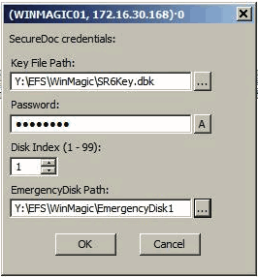
1. When adding a SecureDoc disk, Encase prompts for three credentials:
- The path to the file containing the user keys (extension .dbk).
- The password associated with the key file.
EnCase® Version 7.04
The path to the emergency disk folder corresponding to the physical disk under examination.
- Enter the credentials, then click OK.
- If the credentials are correct, EnCase decrypts the disk and parses the file system structure.
- When you save the case, the ranges of encrypted sectors and the original MBR are retained in the case file for previewed drives as well as evidence files.
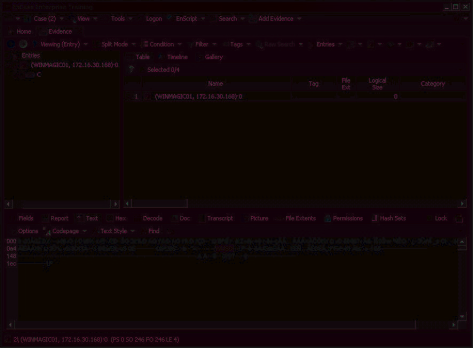
The disk view shows encrypted information in the Text and Hex panes for encrypted drives. The disk view shows decrypted information in the Text and Hex panes for decrypted drives.
Acquiring the Device
A local acquisition at the physical device level results in acquisition of all decrypted logical volumes, when the correct credentials are provide.
An enterprise acquisition at the physical device level results in acquisition of all sectors in an encrypted state.
Note: To obtain decrypted data, perform a local acquisition on the result of the remote acquisition by providing the correct credentials.
The completed acquisition contains the decrypted sectors.