Overview of Database Users, Schema and Permissions
This article provides overview of the verification steps to check regarding Schema and Permissions for users on an SES database that encountering issues relating to either an Upgrade, Performance, or other issue before engaging development for assistance.
It includes procedural steps regarding the various queries that will need to be performed in order to find out information regarding the Database Users, and Schema, and scripts that can be used to correct problems with them.
WARNING: Before going through with the following process, it is important to have the customer create a backup of their database.
Procedure:
- How to check users which are able to access SES database:
You can run the following query to perform this step:
SELECT Name, Type, default_schema_name FROM sys.database_principals where (type='S' or type = 'U') and principal_id > 4;
The output results should look something similar like the following example:
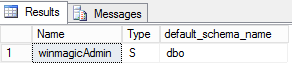
Just like example shown, the ideal schema for a user is dbo.
We will cover how to change this in a later step.
The principal_id > 4 ignores users that are added to the database by default. These include dbo, guest, information_schema, and sys.
- Check the default database for the users that can access the SES database. This property for the user should be set to Master. This query will show a specified user or group.
The example below uses winmagicAdmin. Replace this with a user ID that you would like to check.
select name, default_database_name from sys.server_principals where name = 'winmagicAdmin';
The output results should look similar to the following:
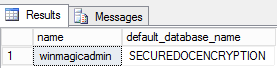
Under default_database_name, we should see Master. If we see that the SES database, or a different database name, we need to update using the following query:
Exec sp_defaultdb @loginame='winmagicadmin', @defdb='master'
You can run the query select statement again to confirm. We should see the following:
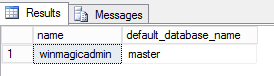
- Check the default schema of the user. This property for the user should be set to DBO.
You can run the following query which will outline users that are not set to dbo, NULL or Guest:
SELECT Name, Type, default_schema_name FROM sys.database_principals where (type='S' or type = 'U') and default_schema_name Not in ('NULL','dbo','guest');
If there is a user that has a default schema that is not DBO, then it should show like the following:
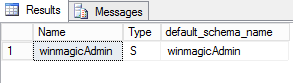
How to make correction:
In order to correct the default schema, you can run the following query for each user which was listed from from last query performed:
ALTER USER winmagicAdmin WITH DEFAULT_SCHEMA = dbo;
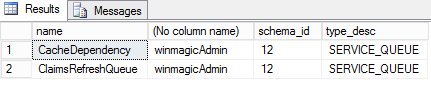
- If Step 3 results in showing that there are users under a different schema, we need to check to see if this has changed the schema of any of the objects in the database.
The following query will check all objects in the database in order to see what schema they’re under. It will also display them if they’re not under DBO, System, or Information_Schema:
SELECT name, SCHEMA_NAME(schema_id), schema_id, type_desc
FROM sys.objects where schema_ID Not IN (1,3,4)
The output results should look similar to example below. In the example shown is a small list however, within a real environment, it’s very likely result generated will have many more in this list:
Example:
In order to update database tables, you need to use the following script in order to
automatically set object to dbo. Note: You can exclude objects which are already set to dbo, sys.
DECLARE
@currentSchemaName nvarchar(200),
@tableName nvarchar(200)
DECLARE tableCursor CURSOR FAST_FORWARD FOR
SELECT SCHEMA_NAME(SCHEMA_ID), name
FROM sys.objects
where schema_ID Not IN (1,3,4)
ORDER BY 1, 2
DECLARE @SQL nvarchar(400)
OPEN tableCursor
FETCH NEXT FROM tableCursor INTO @currentSchemaName, @tableName
WHILE @@FETCH_STATUS = 0
BEGIN
SET @SQL = 'ALTER SCHEMA dbo TRANSFER ' + @currentSchemaName + '.' + @tableName
PRINT @SQL
EXEC (@SQL)
FETCH NEXT FROM tableCursor INTO @currentSchemaName, @tableName
END
CLOSE tableCursor
DEALLOCATE tableCursor
- The last thing to check the users access rights relating to access to the SES Database.
When setup based on fresh installs/upgrades:
You need to have one of the following Server Roles:
- dbcreator (should have as a minimun)
- sysadmin
Note: The Server Roles can be removed after the upgrade has been completed.
For day to day SES usage, each user should have:
- SD_Admin
- SD_User
- DB_Owner (recommended however, optionally you can also use db_datareader and db_datawriter