How to Customize Windows Standard Users for Operating the SES Console (Required reading for CPA / CESG)
The attached article (in PDF format) covers how best to "lock down" the access to the SES Console so that regular Windows users have the least additional rights required to perform this task.
NOTE: This document is recommended or required reading for customers that must adhere to the security standards of Commercial Product Assurance (CPA) of theCommunications-Electronics Security Group (CESG), UK. CESG is the National Technical Authority for Information Assurance within the UK.
How to Customize Windows Standard Users for Operating the SES Console? (Required reading for CPA / CESG)
The following article provides information on how best to "lock down" the access to the SES Console so that regular Windows users have the least additional rights required to perform this task.
NOTE: This document is recommended or required reading for customers which must adhere to the security standards based on the Commercial Product Assurance (CPA) of theCommunications-Electronics Security Group (CESG), UK. CESG is the National Technical Authority for Information Assurance within the UK.
How to Customize Windows Standard Users for Operating the SES Console
 Do NOT install SecureDoc 6.5SR2 version in conjunction with any previous versions of
SecureDoc.
This document explains how to customize a Windows Standard (non-administrative) user to the mandatory level required for operating SES Console by granting those additional permissions and access rights.
NOTE: Typically, users working with SES must have administration rights to configure all server components of this product properly.
The elevation of user permissions and access rights includes the following:
1) User being assigned to proper roles and given the permissions needed to perform transactions in the SES SQL database.
2) User being granted proper permissions on files and folders they would access following their actions performed in SES Console.
Assumptions:
- A user with Windows Standard rights (hence referred as SESAdmin user) exists on the server running SES. Otherwise, a new user is should be created.
- Windows Authentication is sufficient for connecting to the MS SQL Server where the SES
database is located. Otherwise, a SQL account must be created for the SESAdmin user.
The SES Master Administrator with full Windows Administrator rights (or equivalent) needs to make the following configurations:
In SES Console:
- Create an account under SES Administrators folder for the SESAdmin user. This account should have SecureDoc administrative privileges and the SES database key. This account will be used by the new user in SES Console.
- Create a key file for this user and store this key file on the Desktop of the SESAdmin user. The key file must have the setting “Change Initial Password” selected.
- Add the SESAdmin user to SES as an administrator.
In Windows:
- Create a group “SES Administrators”, if it does not exist yet, and grant “Write” permissions for “C:\program files (x86)\WinMagic\SDDB-NT\RemotePackage” folder.
- Assign the SESAdmin user to the “SES Administrators” group.
- Grant the Windows user “Full Control” permissions over their key file
In Microsoft SQL Management Studio:
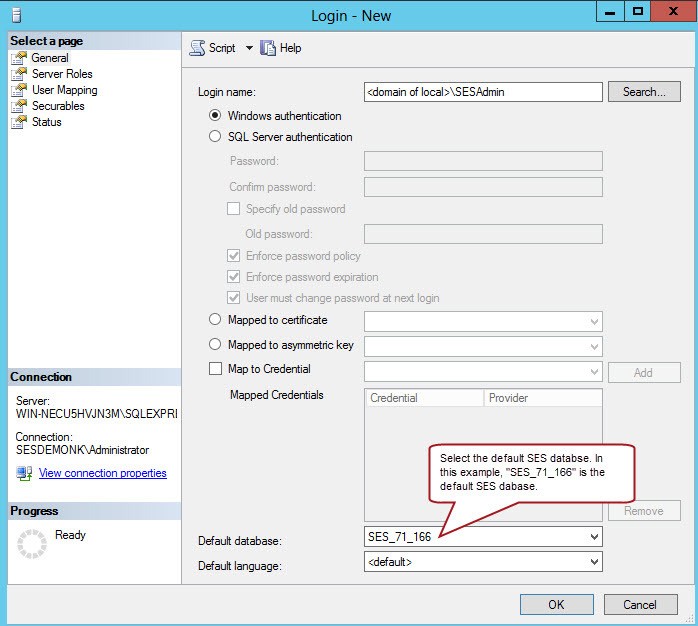
- Using Security -> Logins on the MS SQL Server create a New Login for the SESAdmin user.
- Select the SES database as the Default database.
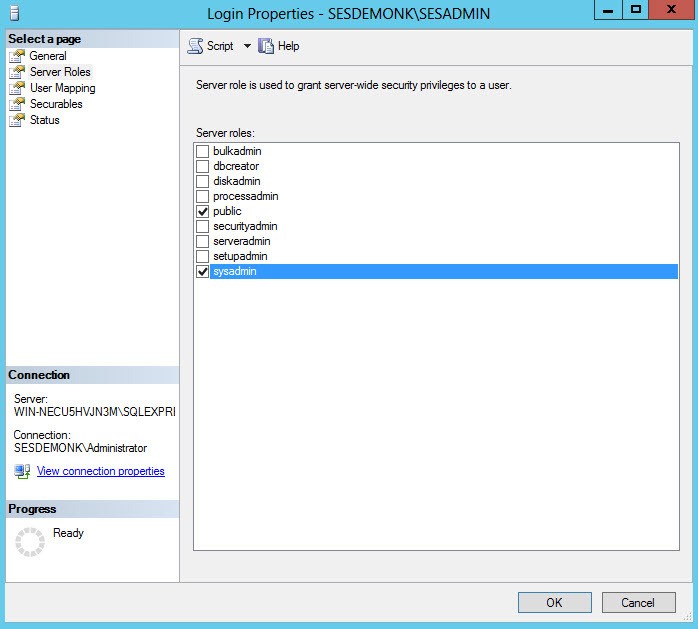
- In the Server Roles tab, assign the “sysadmin” role to the SESAdmin user
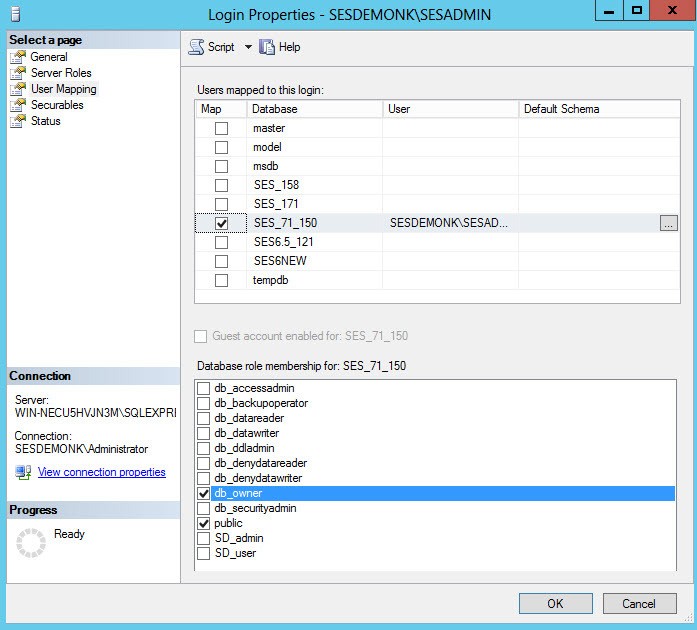
- In the User Mapping tab, map SESAdmin user to the SES database by selecting the corresponding checkbox and assign the SESAdmin user the “db_owner” role for the selected database.
SES Admin User Logging into SES Console:
When the SESAdmin user logs in to SES Console for the first time using their key file, they should:
- Change their password
- Create a New Connection to the existing SES database.
Once SES Console starts, the SESAdmin user will be able to perform all SES Administrator operations.