The following article is to provide instructions on obtaining SecureDoc logs required on your Mac device using special script tool which was included during the installation of SecureDoc. Additional information has also been included in this article which outlines general information about Mac Logs and where to find them and how they can be obtained.
Using the SecureDoc tool to obtain required logs:
Click on Finder
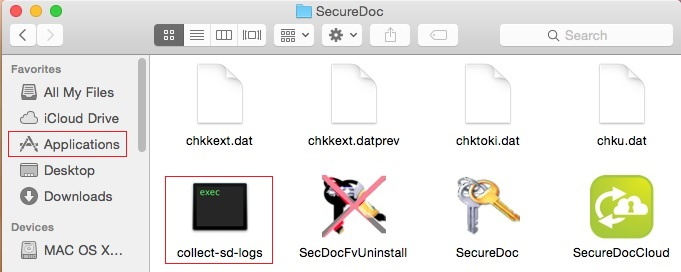
- Click on Application, Click on WinMagic, Click on SecureDoc
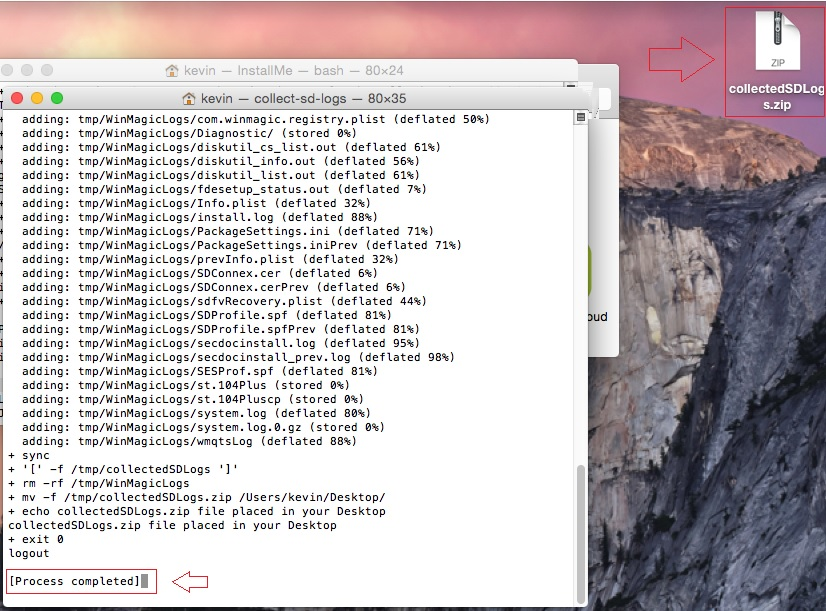
Click on collect-sd-logs to begin process of collecting the logs. This will trigger a terminal session and begin capturing the setup and configuration of SecureDoc on the device including system and diagnostics logs required for the preliminary assessment for your case. It will generate a collectedSDLogs.zip file and place in on your Mac Desktop.
General Information about Mac Logs and where to find them.
In most cases, you will only need to run the SecureDoc script tool however there may be times in which you may want to specifically obtain specific log information. Some of the information included will help you understand the nature of Mac logs and what they are.
Installation Logs:
Normally when you install an application on a Mac, it typically comes in the form of a .dmg image. When you install SecureDoc application, it will essentially run through the steps for installing the package contents. When install takes place, it will dump the install activities, including where files are being copied, and any errors or warnings encountered with the installation process. This will also provide additional information on when authentication (if any) was granted to run the installation, and which user installed the program.
The Installation log is useful to obtain, where issue reported is relating to a failed installation. The Install.logs will be normally located in /var/log/ for most Mac OSX builds.
SecureDoc Agent Application Log file:
The SecureDoc log for the Mac Client will record information in secdocinstall.log which will capture client activities which took place on the device. (Info such as remote command, encryption activities, users etc.)
The location for this file is /WinMagic/SecureDoc/
Kernel Logs:
The most common reasons why Kernel logs are gathered is because the Mac OS recovered from some sort of a crash (often known as a Kernel panic event). In the event that the Mac OS did crash or failed to launch after installing SecureDoc, it may be useful to gather both the System and Kernel Logs. These can be obtained from within the Utilities/Console app. Or via Terminal.
The normal location for Kernel and System Logs are in /var/log
Kernel Panic file(s):
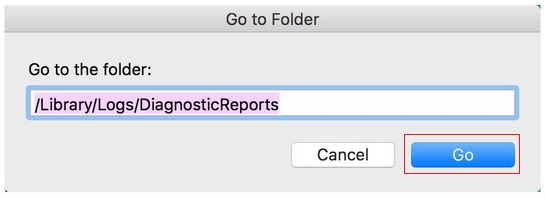
In certain versions of Mac OSX builds, you will not find kernel.log file which will show kernel panic events. In this case, you can click on the Finder icon in the Dock, and then choosethe “Go” menu from the top of your screen. From there, click the “Go to Folder” option.
Type the path ~/Library/Logs/DiagnosticReports/ into the text field.
When you see the little box that pops up next, type in the following and click “Go” button:
You can then simply scan through contents of folder for log files that begins with “kernel”. If the panic event has occurred multiple times, you should see more than one of these files present.
Console Logs
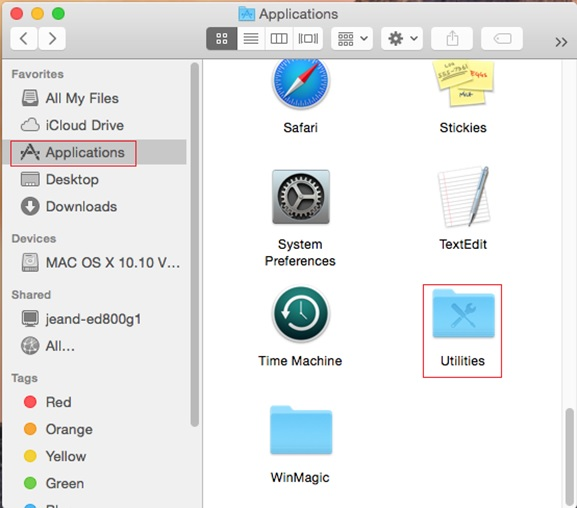
From within the Console Utility, there is various diagnostic logs can be viewed. The Console application can be found in “/Application/Utilities” folder. You can also launch Console App by using Spotlight.
Note: The snapshots provided are based on Mac OS X El Capitan however there is some slight difference in OS X Sierra.
Extracting Logs are possible using the Console. You can export logs in in a more selective way in which you can specific data needed.
Basic Example:
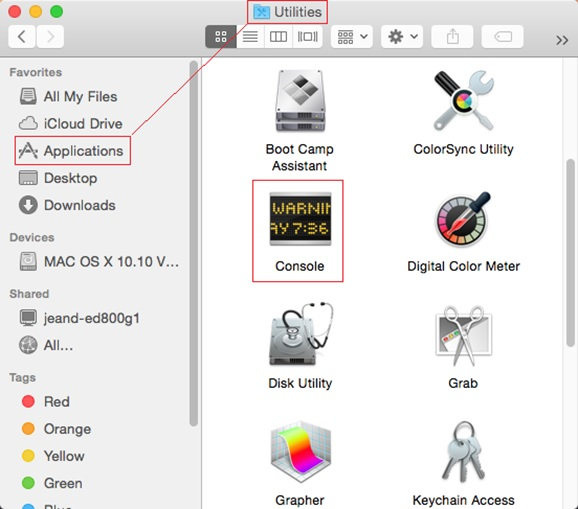
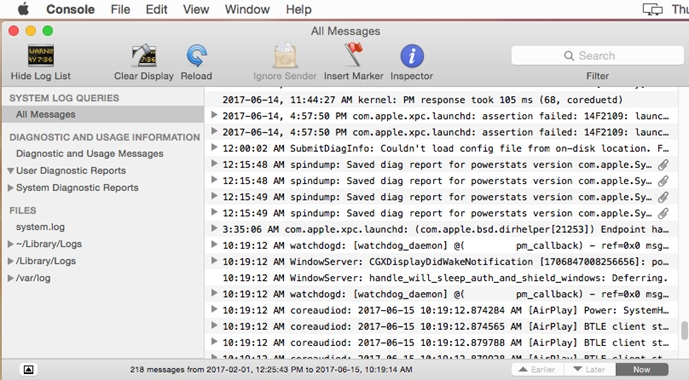
- Launch Console App
- In the left pane, under the heading System Log Queries, click All Messages.
- Click on File > Save a Copy As… and save the file.
Send this exported file to us as a zipped attachment to your support issue.