Enabling Fingerprint Protection in SecureDoc Enterprise Server (SES)
Applies To
- SecureDoc versions: 4.5 SR1A through 4.91 SR4
- Operating System: Windows
- Fingerprint Software: UPEK Protector Suite Software Build 5.8.2.4640 or later
Summary
This article describes how to configure SecureDoc Enterprise Server (SES) to use fingerprint authentication with the UPEK Fingerprint Scanner.
Pre‑Requisites
Before enabling fingerprint protection, ensure the following requirements are met:
- SecureDoc version 4.5 through 4.91
- UPEK Protector Suite Software Build 5.8.2.4640 or later
- UPEK software installed on the client device
- User’s passport configured and fingerprints enrolled
Configuration Steps
1. Create the Installation Package
- In the SES console, open the KeyFile tab.
- Select Ask user to switch from password to token protection.
- Choose UPEK FingerPrint Reader as the Token type.
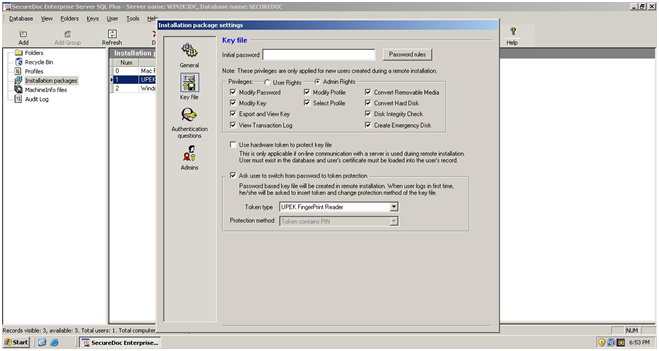
- Continue configuring other package options as required.
Note: This is the only fingerprint‑specific setting required.
2. Install on the Client
- On the client computer, double‑click SDSetupSilent.exe to begin installation.
- The computer will automatically reboot.
3. Boot Logon and Encryption
- After reboot, the boot logon is installed.
- The encryption process begins automatically.
4. Pre‑Boot Authentication
- Once encryption completes, the computer reboots again.
- At the pre‑boot logon, login with the UserID and the default initial password.
5. Windows Logon
- Log on to Windows to proceed with setup.
6. SecureDoc Fingerprint Enrollment
- A SecureDoc dialog box will appear.
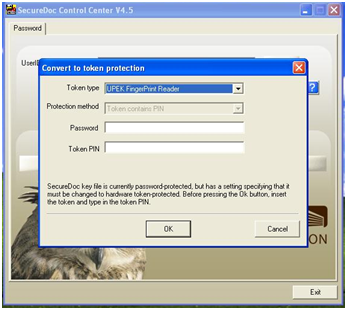
- Enter the initial SecureDoc password and click OK.
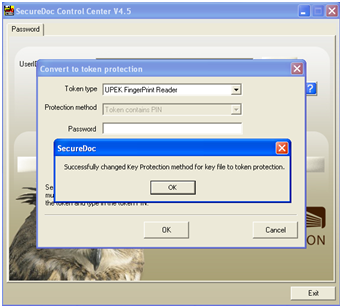
- When prompted, swipe your finger on the UPEK Fingerprint Scanner to complete enrollment.
Key Takeaway
Fingerprint authentication in SES provides a secure and convenient alternative to password‑based protection. Once configured, users can authenticate at pre‑boot using their enrolled fingerprint, enhancing both usability and security.