Title: Accidental assignment of wrong Device Profile cause, effect, and mitigation
Affected Version:
SecureDoc SES
Environment: Use Case Summary:
The scenario affected a very large customer, with over 55,000 devices affected. The customer had mistakenly given admin rights in SESWeb to some level 1 techs, and a technician assigned a device profile to the root folder. This resulted in the near decimation of the environment and over 55,000 devices getting the wrong profile, out of which thankfully only about 1000 resulted in support calls. However, this was a major issue and even though SecureDoc was operating by design (we do allow profile assignment to the folder) it put a black mark on us because we have no way to undo such an action.
The Cause:
The customer had mistakenly given admin rights in SES web to some level 1 techs. The default Administrator Roles is shown below.
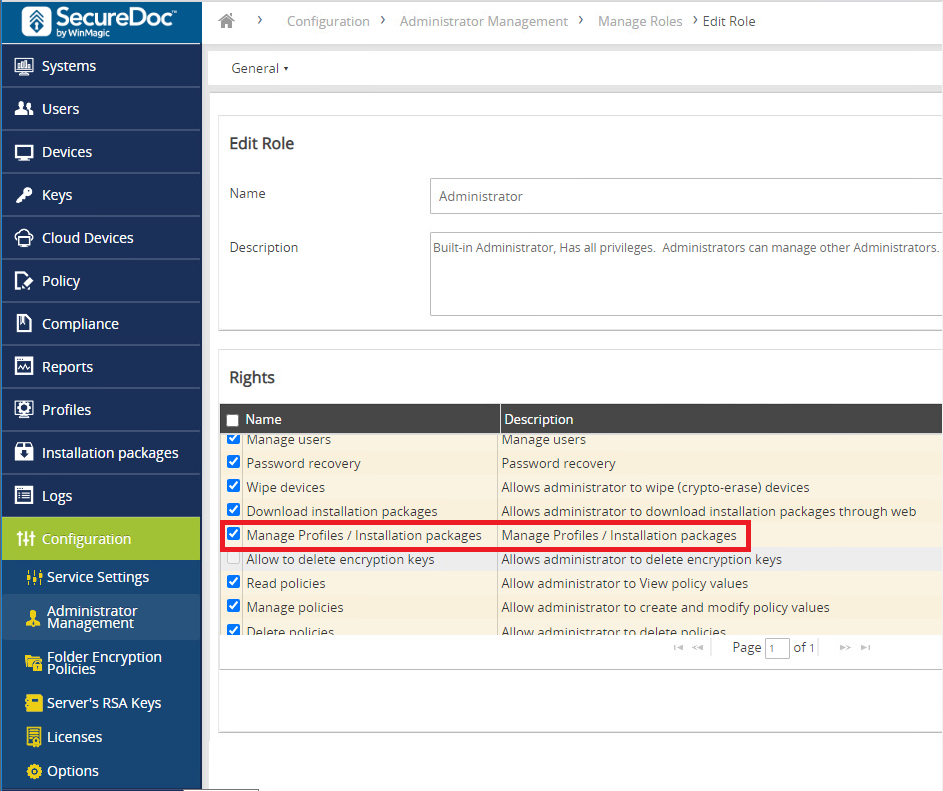
By default, full admin rights include the ability to manage devices by folder.
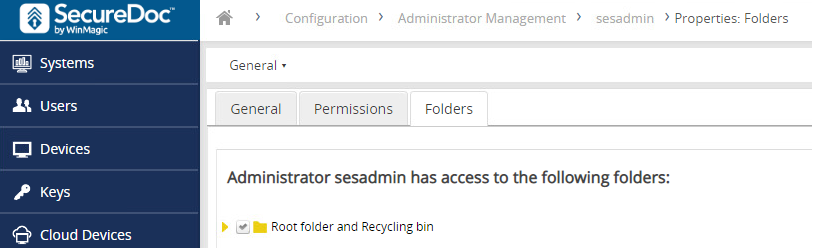
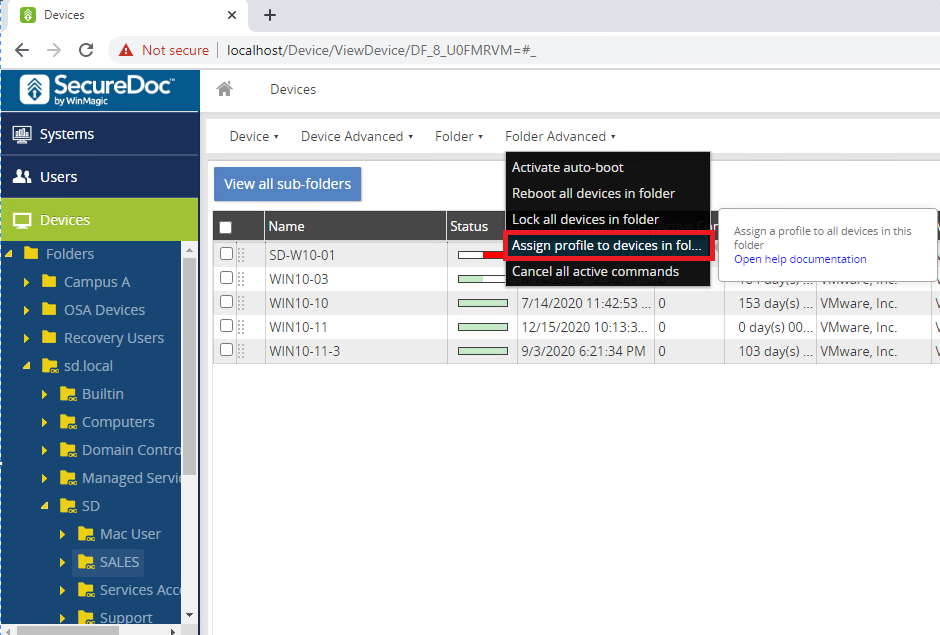
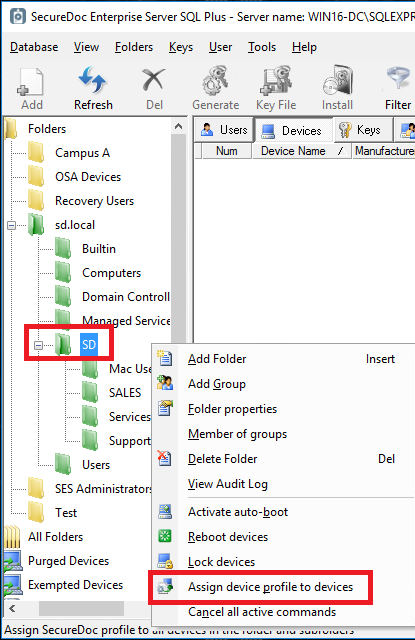
When an SES Web user has the ability to manage a device by folder that means it can assign a device profile to all devices in the folder, including all the devices in the sub-folders. For example: Assign the profile to devices in the folder “SD.local”, the profile will be also be applied to the sub-folder “SALES”, “Support” etc. as shown below.
The Effect:
The SES Web user originally wanted to apply a profile to one specific device (in which case the Admin should have used the Device Advanced menu), but instead, the SES Web user used the Folder Advanced menu, applying (in this case) the selected profile to every device in the environment by applying it to the root folder (cascading down to all subfolders). Even though the specific device is selected, by selecting the folder-level menu option and assigning the selected profile to devices in the folder, the profile was applied to all the devices in the folder and sub-folder. In this context, SESWeb does not consider which device(s) might be selected as shown below.
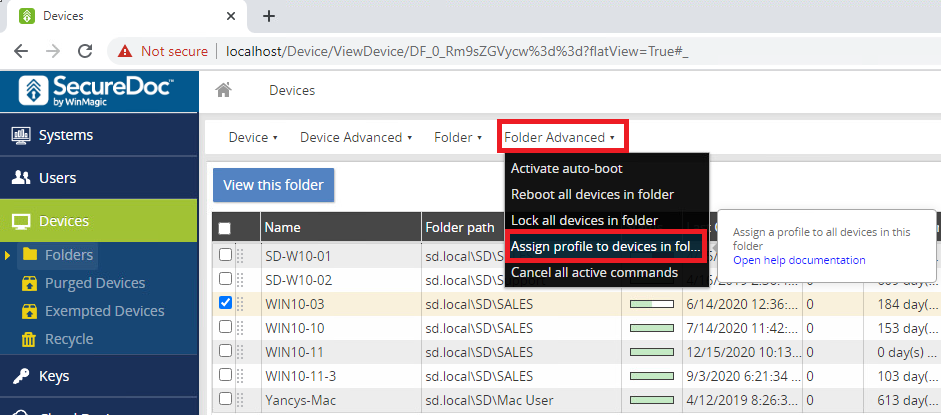
This broad application of a Profile can also be performed using the SES console, as shown below.
Mitigation Steps:
Scenario 1: The customer had mistakenly given admin rights to SES Web user then the user applies a profile to every device in the environment by applying it to the root folder. - Restore Database from a backup.
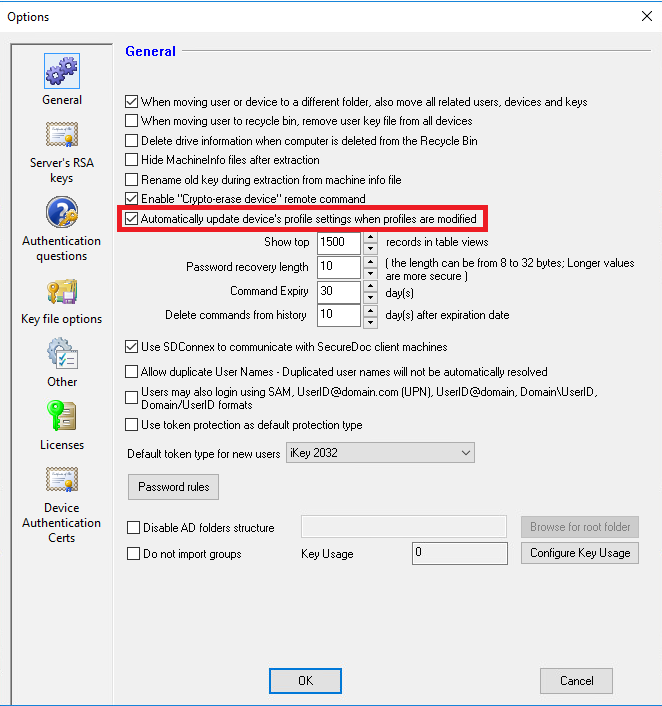
- Enable the global option “Automatically update the device’s profile settings when profiles are modified” to update the Profile under Tools -> Options -> General.
- Open each profile, then save it without making any changes. This will mark each profile as having been changed, triggering an update through the global option set above. Because the restored-from-backup SES database thinks that the device is still assigned to its original profile, then when the device communicates to SDConnex, it will get the command to get the updated profile. The device should now pull down that updated profile, reinstate its original profile, and be reverted back to the profile it originally had.
Scenario 2: Multiple profiles: If the customer does not have too many profiles. Follow the steps in Scenario 1 start from Step 2 to 3.
Scenario 3: If the customer has a mixture of devices that use different profiles that are scattered all over the place. - Recommended solution: Restore the Database from a Backup.
- If database restore is not possible then perform the following steps.
- Collate all the devices into one folder.
- Run SQL query to find any devices that are encrypted, like hardware encryption for example.
- Put all devices in one folder based on needing the same profile (folders can be temporarily created to do this, then discarded later)
- Apply the correct profile to all the devices in the folder.
After effect:
The device may have some issues with boot up, for example, if the incorrect profile had somehow manipulated the preboot parameters, or similar. It is possible that the devices could somehow be locked out. The only way to remediate those is to use alternate pre-boot to get through if possible because the chances are Linux Preboot cannot load. So, in this customer’s case we just had to use alternate preboot, then once the device had loaded Windows then the devices could communicate with the Server to pick up the correct profile.
Prevention: - Assign only admin rights to top-level admin. Great care should be taken to manage Roles specific to the user’s permission level, such as Desktop Support, Helpdesk, etc., to ensure that such lower-function Administrators do not have rights or privileges beyond their job function
- Ensure that Administrators are clear on how the Device-level and Folder-level Menus differ in the overall scope of functionality, especially ensure that where Administrators are selecting devices, any use of the Folder-level menu items will not pay any attention to which devices are selected… they work at the folder level, not at the (selected) device level.
Summary:
Assigning profiles to devices at the folder level will also cascade down to apply it to the devices in the sub-folders.
We should be respectful of customer’s processes and we should not ask them to do stuff in production that can potentially cause an outage situation, particularly when they have procedures and change request processes that apply. Check with the customer what they are allowed to do, what their internal processes are, and remember it may be necessary to explain to other decision-makers before they will be permitted to do what we need them to do to mitigate an issue.
Be careful when asking customers to run any SQL scripts that may cause damage, and customers should always be requested to take a backup of the database (or even of the entire virtual machine if the server is running in (e.g.) VMWare before SQL scripts are run, to ensure there’s a means to get back to a previous state.
Recommendation:
Customer to schedule regular database backup.
|