n-screen keyboard can appear twice on Microsoft Surface Pro 3 devices in Tablet mode (no attached physical keyboard)
Please be aware of the following Microsoft Surface Pro3 issues that WinMagic has recently encountered (as at the time of this writing, April 2015):
Issue:
The pre-Boot virtual keyboard icon may appear on-screen twice (Top right corner, and bottom right corner) during SecureDoc pre-boot authentication on Microsoft Surface Pro 3 tablet computers when there is no physical keyboard plugged in.
Customers will find this confusing, since either virtual keyboard can be used to enter user credentials.
HOWEVER: Where both of these icons appear (see conditions below), since both underlying programming codes that support each of these keyboards are "polling" to find out what the user is entering, the entry of User ID and Password information can be very slow, and error-prone (particularly since users cannot see what characters they are entering for Passwords). The first image below shows the tap icons for both the Microsoft and the SecureDoc virtual keyboards.
Example images:
NOTE: the Keyboard Icon that appears at the Top Right corner, when tapped, will call up the Microsoft native virtual keyboard for the Surface Pro 3.. The Microsoft Native virtual keyboard does not span the entire screen, as shown in Figure 1, below below.
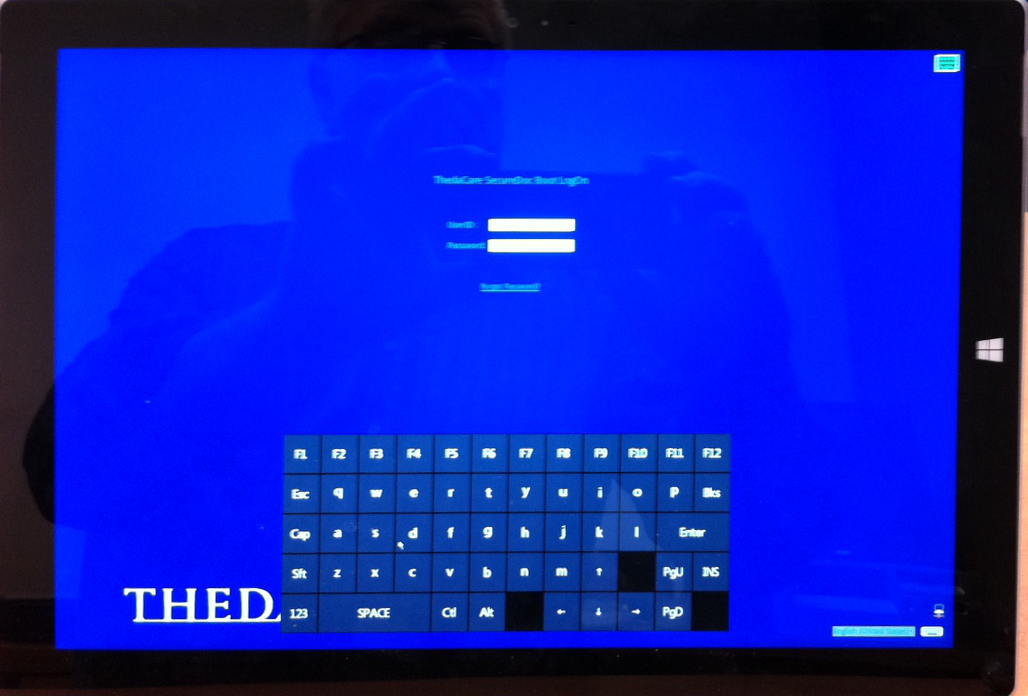
Figure 1: Microsoft Native Virtual Keyboard for the MS Surface Pro 3
The Keyboard icon that appears at the BOTTOM Right corner, when tapped, will call up the SecureDoc Pre-Boot virtual keyboard, which DOES span the entire screen, as shown in Figure 2, below.
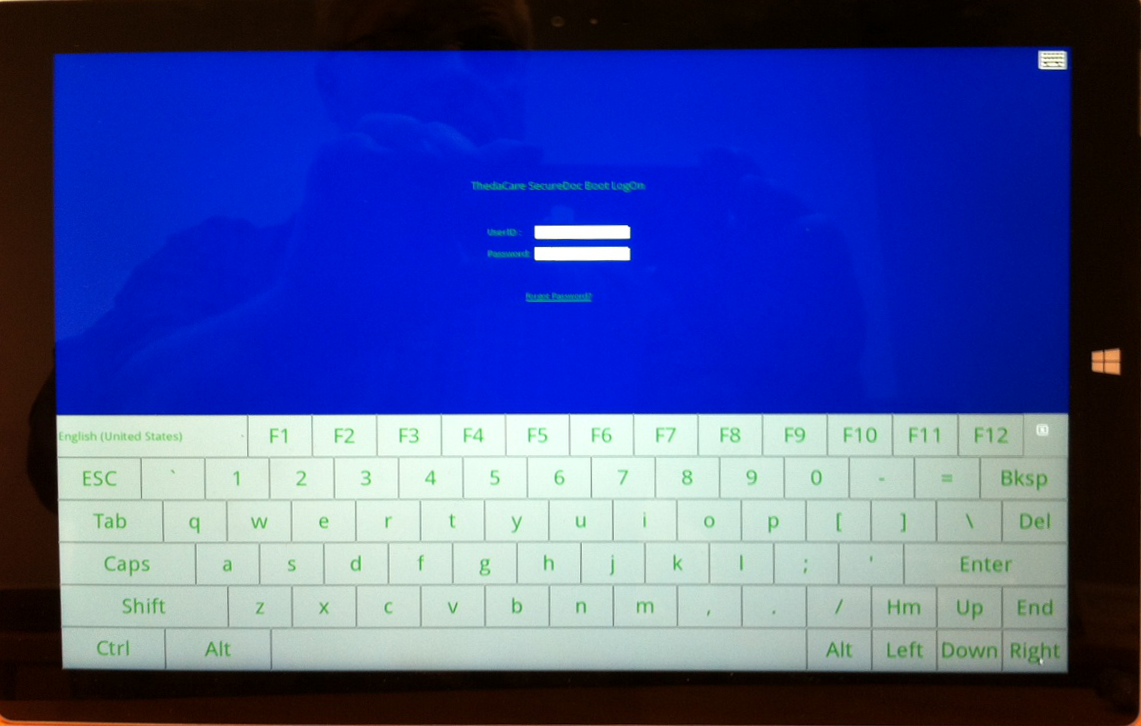
Figure 2: SecureDoc Pre-Boot Virtual Keyboard, shown here on a MS Surface Pro 3 tablet
Note: In some circumstances, both keyboards can be made to appear one on top of the other, concurrently.
Under what circumstances are these both available concurrently?
Root Cause: The WMSD partition is always created at the beginning of the disk. The WMSD partition is the WinMagic partition containing SecureDoc files (recovery, SecureDoc space etc).
Microsoft Pro3 firmware, for a yet unknown reason, behaves abnormally (bug) when the WMSD partition is at the beginning on the disk. WinMagic conjectures that the same would happen if any Fat32 partition were to be located at the beginning of the disk on a MS Surface Pro 3).
Conjecture: Current thinking is that the Pro 3 firmware (BIOS) might be analyzing the SecureDoc WMSD partition, then making an assumption upon finding this partition then changing firmware-related settings (ex: BootXXXX variables) in an unexpected or inappropriate way).
As a result it activates the native Pro 3 virtual keyboard that will display on the SecureDoc pre-boot screen.
The sluggish touchscreen behavior that users will encounter occurs because both the native and SecureDoc keyboard handlers are trying use the same touch interface provided at BIOS time.
WinMagic (interim) conclusion: This could be a firmware issue and WinMagic will file a report with Microsoft.
On the Surface Pro 3 systems where this issue has been encountered there is a 500 MB unallocated area located at the beginning of the disk and some unallocated spaces at the end of the disk.
On a typical fresh install of Win8.1 on a Surface Pro 3 such unallocated areas or disk structures do not normally exist, unless they has been manually configured.
The current design of SecureDoc will create the WMSD partition by requesting the OS to provide free unallocated space. If the disk is fully partitioned then it will shrink the last partition to automatically create the WMSD partition at end of the drive.
On the devices showing this issue, since there is unallocated space at the beginning of the disk, it creates WMSD partition at beginning of the disk which appears to be triggering the unusual chain of events leading to the virtual keyboard appearing twice.
Screenshot of disk structure on example system. WinMagic has been able to reproduce the behavior on other Surface Pro 3 devices if the disk is structured in a similar way.
The options currently under consideration for mitigating this problem:
1 - Report the bug to Microsoft and have them fix it in the Surface Pro 3 firmware. This is the correct way to fix the issue; however this will take longer and may not be actually feasible.
2 - Avoid leaving unallocated space in front of the disk during the image process.